
Out of all the pursuits I’ve tried, I think wildlife photography has got to be one of the most difficult – and I’m including my doctorate in pure mathematics on that list. That’s why I like to take some time at the end of the year and go through my favorite shots and figure out what I liked and what I didn’t like. It’s also a good time to think of ideas for the future so that I can better express myself in photography next year.
We often strive to shoot photos with out-of-focus backgrounds to draw more attention to a key subject within the frame. But what do you do when an entire shot is in focus? This quick tutorial from the Adobe Live YouTube channel demonstrates a simple solution for processing the image in Lightroom for a realistic look..
Today’s lesson is part of an eight-episode series with photographer, educator, and digital artist Aaron Nace whose PHLEARN videos are dedicated to the ins and outs of using Lightroom to enhance various styles of imagery. Here’s his goal for today’s three-minute episode: “This tutorial will guide you through the process of creating realistic bokeh effects, isolating subjects, and enhancing the overall depth of your images.”
Nace provides one example of an environmental portrait with sharpness throughout the frame, and other where the subject is sharp but the background is nice and soft. The problem with the former is that various elements within the scene compete for a viewer’s attention.
The first step for rehabilitating the confusing shot is navigating to the Blur tool and clicking on “Apply.” Lightroom then estimates the depth range of the image and automatically applies Lens Blur for a significantly improved version.
Achieving this effect with no intervention on your part often delivers the goods in an instant, but Nace demonstrates several ways you can quickly refine the effect further. For example, you can experiment with different types of bokeh by simply tapping one of four icons.
There’s also a simple slider for increasing or decreasing the Blur Amount that’s applied to make it easier to discern the style applied with each of the bokeh options. The only way to accomplish this in the camera is by using different lenses.
Nace provides recommendations for adjusting other variables like Focus Range. Here again, there are multiple options from which to choose based upon the image at hand and the specific look you want to create. For example, you’ll see why Nace often turns to Lightroom’s Targeted Adjustment tool.
Once the video concludes pay a visit to the Adobe Live YouTube channel where you can watch earlier installments of this very helpful series as well as lessons on other important Lightroom tools and techniques.
Thoughtful vignettes can make a huge difference in the impact of landscape photos, especially those with a minimalist look. The basic Lightroom tutorial below from the PHLOG Photography YouTube channel explains how easy it is to unlock this transformative technique.
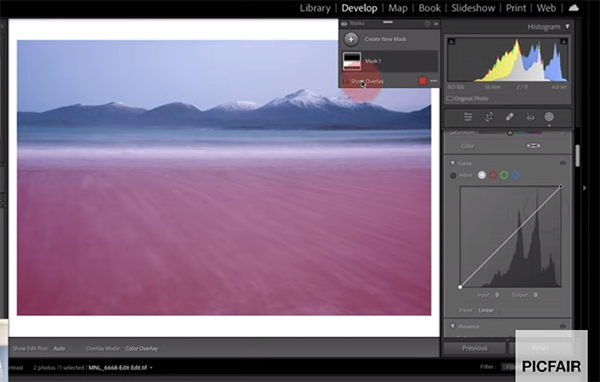
Instructor Cristian Mohrle is a highly acclaimed landscape specialist based in Southern Germany and a favorite among Shutterbug readers who appreciate the powerful post-processing lessons he provides. He summarizes today’s episode like this: “I want to show you how we can create custom vignetting in Lightroom, using a bit of masking, to bring more attention to the key subject in a scene.”.
The demonstration shot is a clean-and-simple photo of a small stand of trees on the horizon. The problem is that the tonal values of the sky and snowy foreground prevent the composition from guiding a viewer’s to this most important element in the frame. Feel free to download the Raw file with the link beneath the video to you can mimic Mohrle’s adjustments as they’re revealed.
Mohrle’s standard approach is to make few global adjustments to improve his original shot as much as possible before turning to selective making with the tools under discussion. He opens Lightroom’s Basic panel and changes the profile from Adobe Color to Adobe Landscape which immediately bumps up Saturation.
Other preliminary steps include increasing overall Exposure as well as Highlights for the high-key effect he desires (while avoiding clipping by paying close attention to the Histogram). You might think he’s gone overboard with brightness, but here’s the deal: “The reason I’m going for a crazy brightness like this is because I’ll be adding darker areas throughout the image later on with masking to introduce the vignetting effect.”
Now you’re ready for the meat of this lesson as Mohrle’s demonstrates the straightforward vignetting and masking techniques involved. Ever the perfectionist, Mohrle doesn’t stop there, however, and he completes the impressive edit with thoughtful color grading and a bit of subtle sharpening.
Once you get the hang of it, and it doesn’t take long, you may want to review photos you’ve shot in the past and see how much they can be improved with this vignetting workflow. Then check out the PHLOG Photography YouTube channel for more landscape post-processing tips and techniques.
Today’s tutorial from our friends at Adorama TV begins with a simple question from a reader: “I’m considering switching from shooting in color to black and white for my portraits work. What are some key differences to consider when composing and editing in monochrome?”
This query was submitted to the unique Ask David Bergman website where you can pose questions and receive a response from this eclectic NY-based photographer. Bergman is a professional photographer and educator with over 30 years of experience shooting everything from sports and live concerts in the pit to celebrity portraits and performance tours. He even has 13 Sports Illustrated covers to his credit.
Bergman’s response to the aforementioned question begins with a brief history of b&w photography looking all the way back to when the first known photo was captured in 1826 and continued on through other new technologies like the daguerreotype and beyond. Back then, monochrome images were the only way to capture light and shadow with a camera.
There’s also a nod to Ansel Adams and other iconic masters as Bergman explains why he shoots in b&w on occasion, and these instances go beyond capturing dramatic portraits. He explains the general concept like this: “I’ll choose black and white when the color in an image just doesn’t add anything to the photo. I’ve often said that everything should be in an image for a reason, and if color isn’t helping get rid of it.”
It boils down to the simple notion that some subjects are far more compelling when rendered in monochrome, and Bergman describe the “practice, techniques, and psychology” behind this fact as it pertains to modern digital photography.
Bergman covers a lot of ground in less than nine minutes, so we suggest jotting down a few notes. He explores the benefits of b&w vs. color with regard to portraiture and other popular genres, and how to get the job done in-camera. You’ll also learn a straightforward workflow for shooting in color and converting the files during post processing and he illustrates a few advanced conversion techniques that work particularly well when editing formal portraits and other types of people pictures.
This comprehensive guide is designed for shooters of all skills levels and describes how to employ dedicated software that provides excellent results. Skillful composition and using light to advantage are other key aspects that factor into the equation, and Bergman demonstrates why and how these techniques work so well.
There’s much more to learn on the Adorama TV YouTube channel, so be sure to take a look. And be then visit the popular Ask David Bergman website and pose questions of your own. You may even find his response published here on our website.